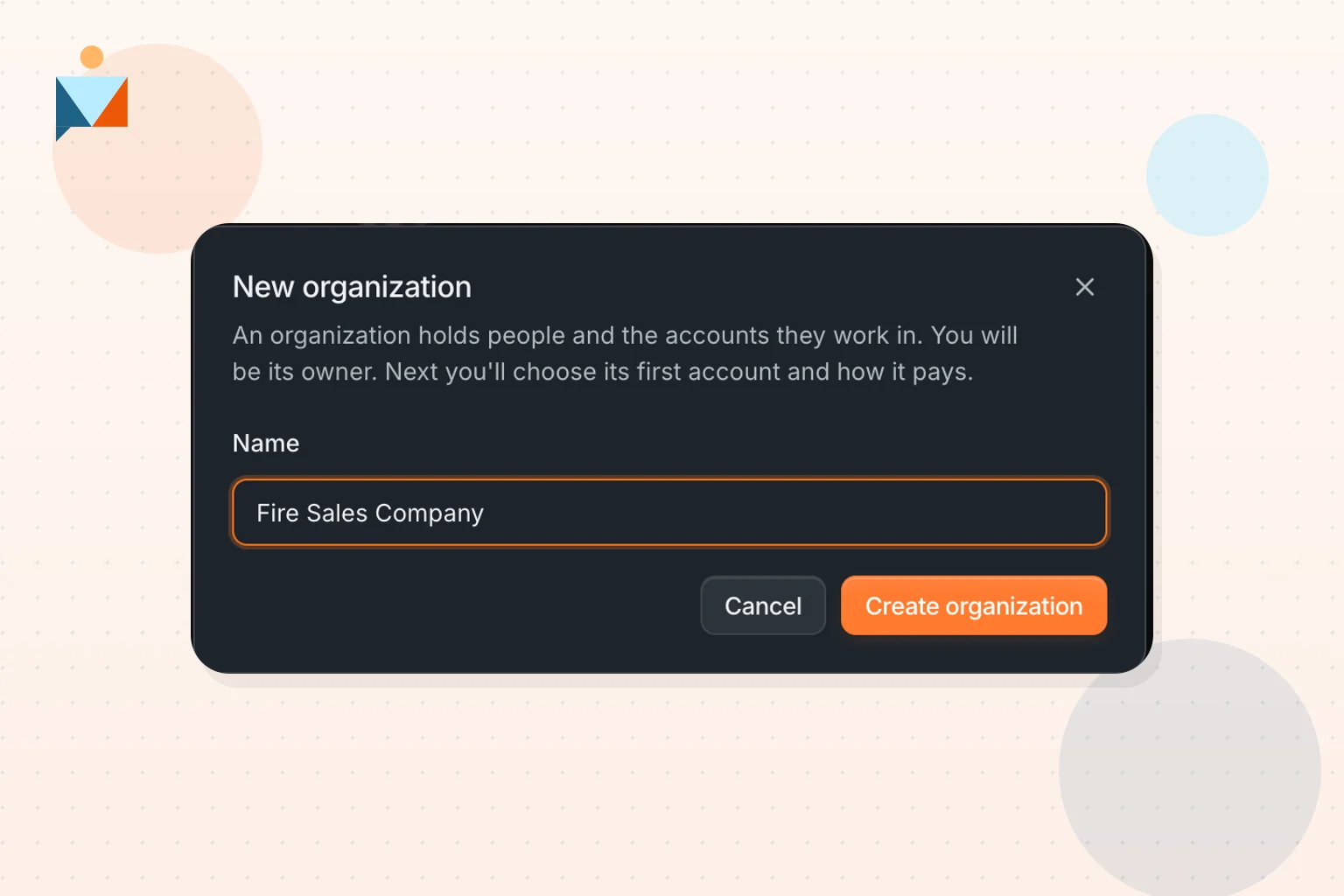
Organizations is live today for every PitchPrfct account. It lets one owner run several accounts on one invoice with a shared pool of credits, cap what each account spends, and read every account's message totals on one page. It is built for agencies, multi-location businesses and anyone juggling more than one brand or sales team.
What an organization is
An organization holds the people and the accounts they work in. One person owns it, it pays for every account on one invoice, and every account spends from one shared pool of credits. Use it when you run more than one PitchPrfct account: several brands, locations, clients or sales teams.
An agency with six client accounts tops up one balance, reads one invoice, and sees every account's message counts on one page.
Find it in the account switcher
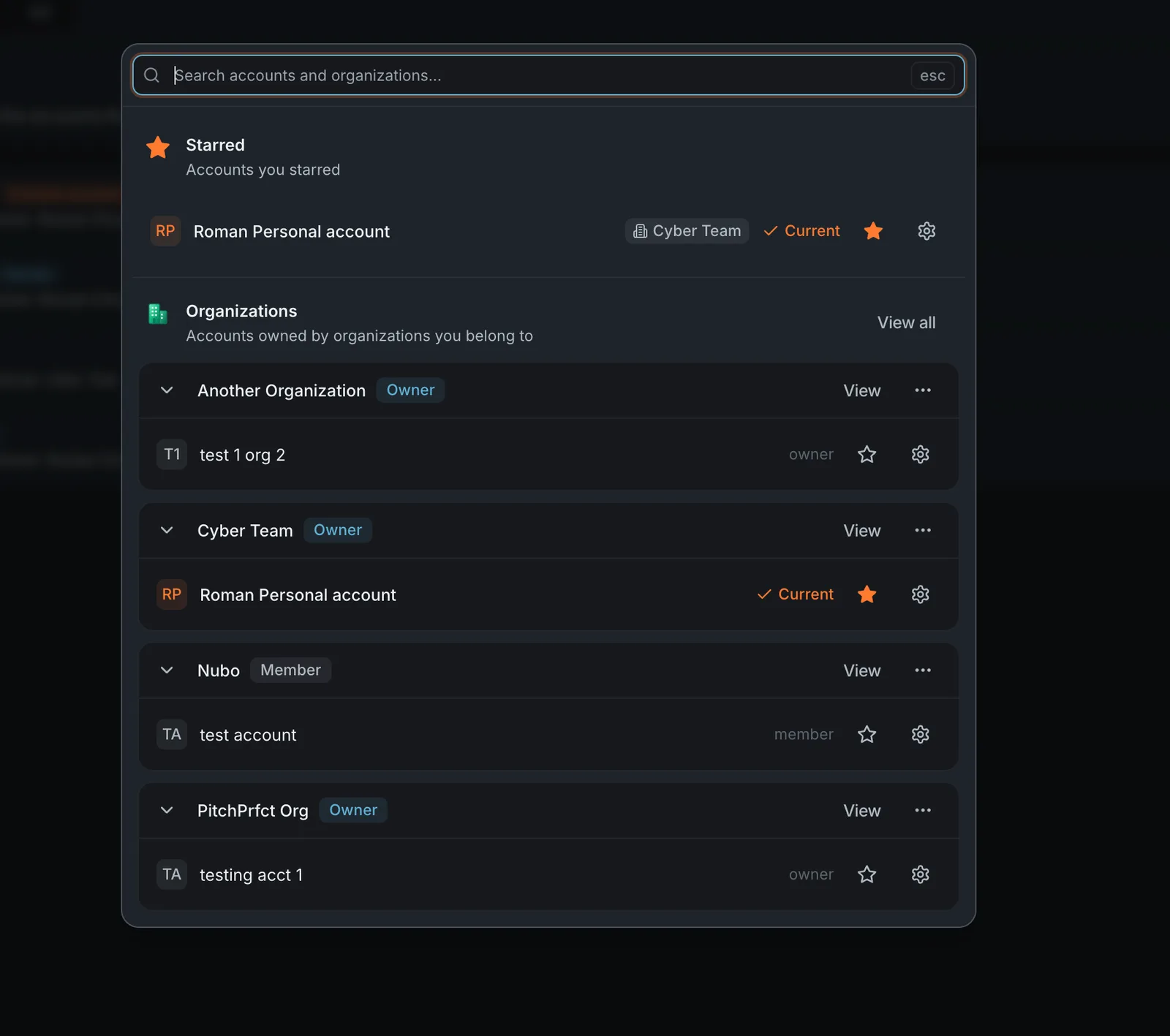
Every organization you belong to is listed in the account switcher, with your role and its accounts. Click View all to open the Organizations page, or go to Settings, then Organizations.
Set one up
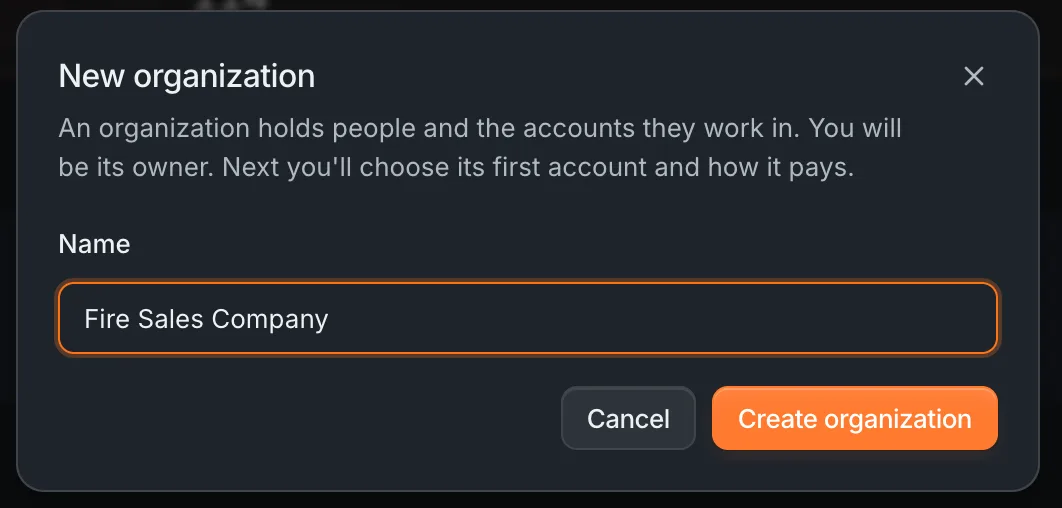
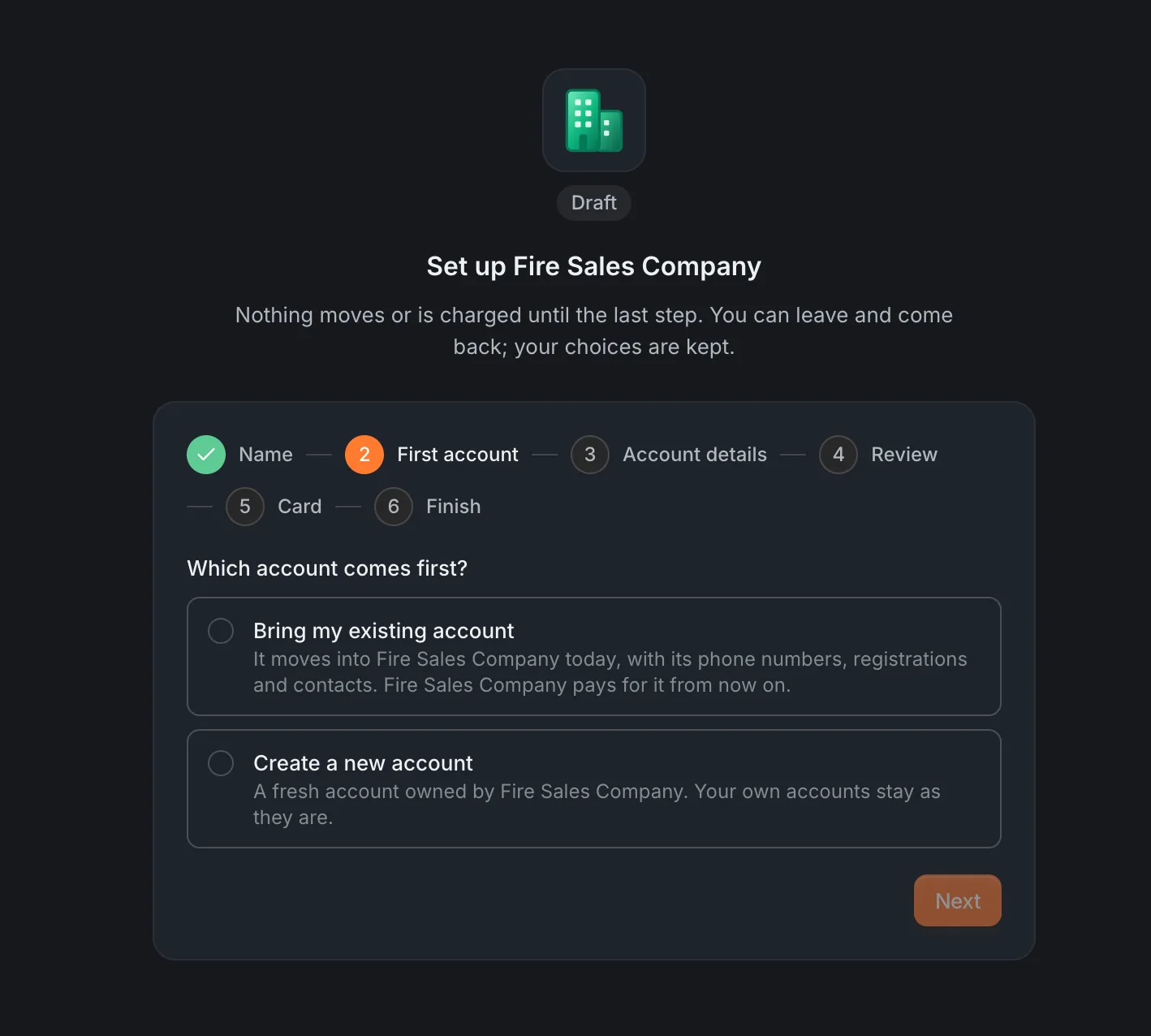
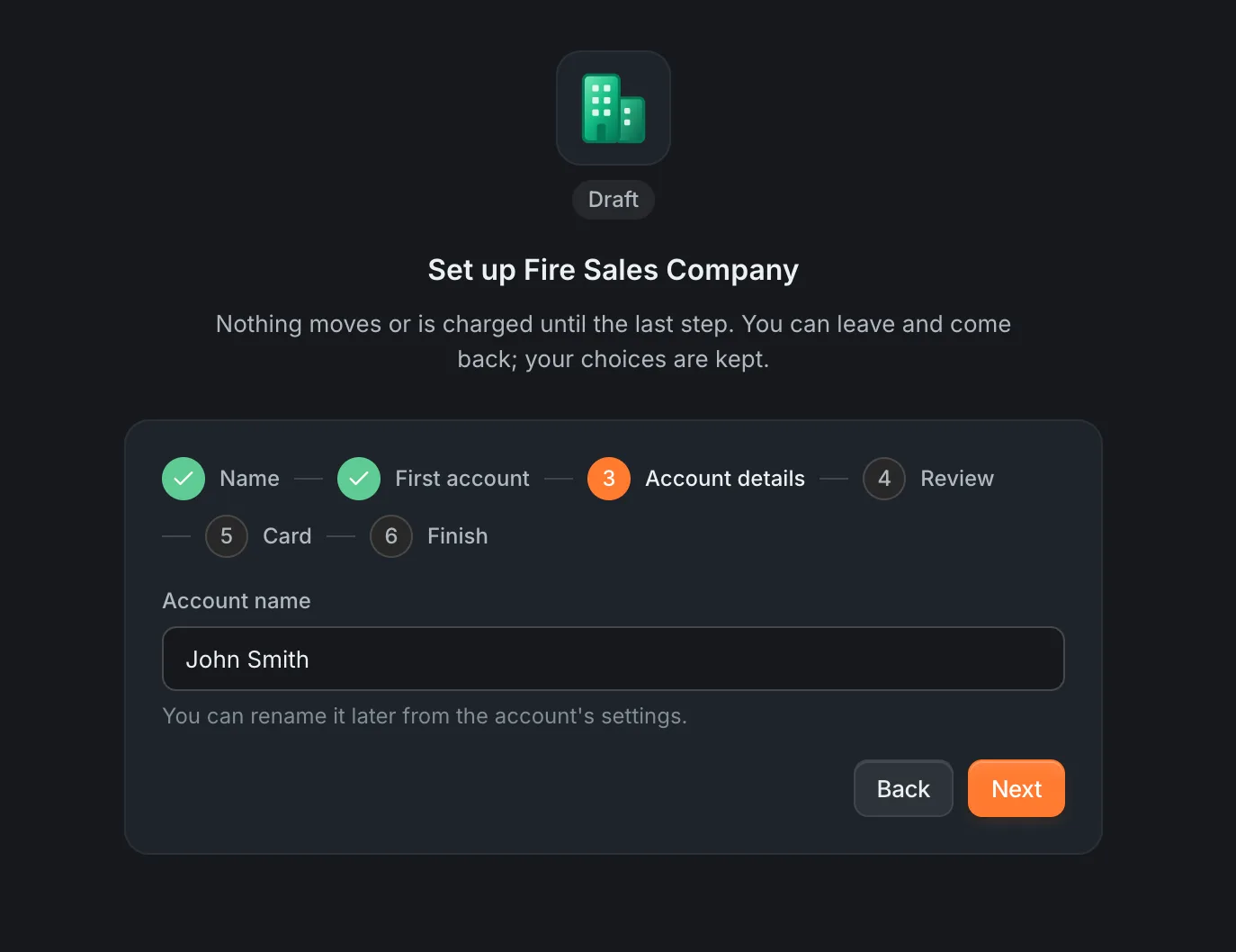
Click New organization and name it. The setup page then walks you through six steps. On the first-account step you choose between bringing an existing account in, with its phone numbers, 10DLC registrations and contacts, or starting a fresh one. Nothing moves and nothing is charged until the last step, so you can leave the setup page and come back later.
Invite your team
Owners and Admins invite people from the Members tab, by email, up to 50 at a time. Admins invite people, add accounts and set spending limits. Members work only in the accounts you give them. Each account the organization owns comes with one member seat.
An invitee has three paths in: use the accounts you pick for them, get a new account of their own, or bring in the account they already have.
| Role | What they can do |
|---|---|
| Owner | Invites people. Billing, credits, ownership transfer and deletion belong to the Owner alone. |
| Admin | Invite people, add accounts and set spending limits. |
| Member | Work in the accounts they have been given. |
Cap what each account spends
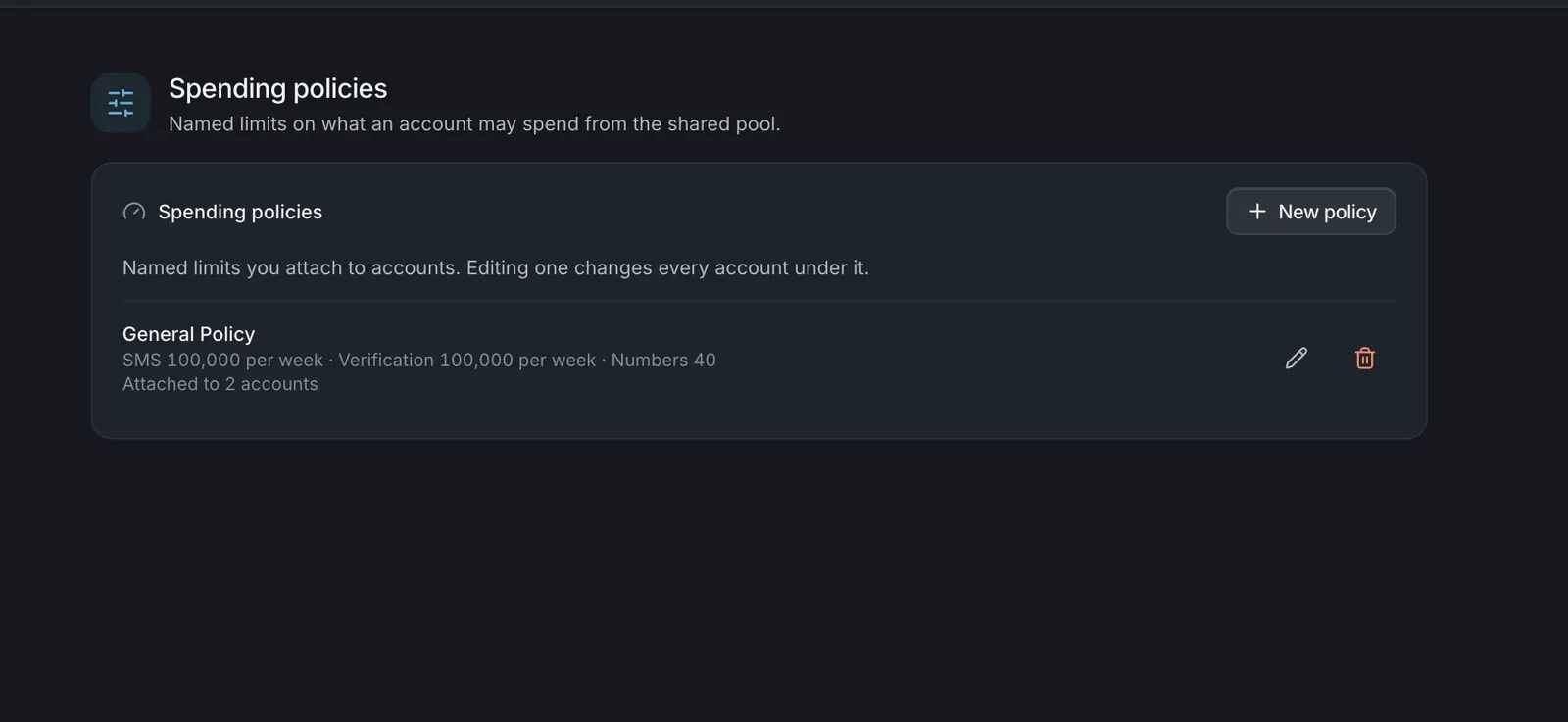
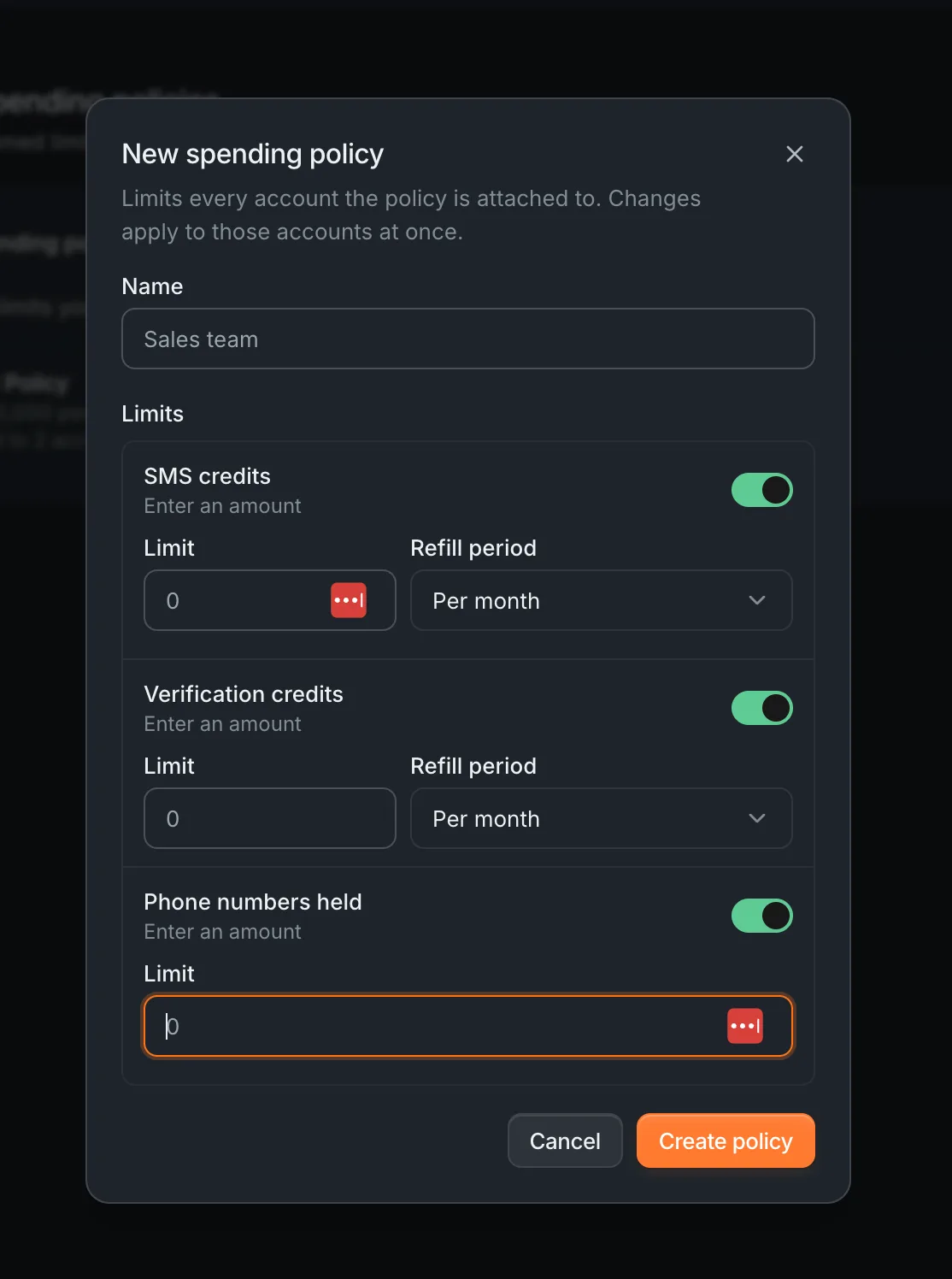
A spending policy limits what an account draws from the shared pool. It sets three things: SMS credits per period, verification credits per period, and how many phone numbers the account may hold. The period can be an hour, a day, a week or a month, or the limit can be one-off.
Attach one policy per account. Several accounts can share a policy, and editing it changes every account under it at once. A sales team with a fixed monthly texting budget gets a policy sized to that budget. An account that reaches its SMS limit pauses until its period rolls over or an admin raises the limit.
One pool of credits, one invoice
The Owner buys credits on the organization's card and every account draws from that balance. Billing shows one line per account and the monthly total, on one invoice. See pricing for the per-message rate.
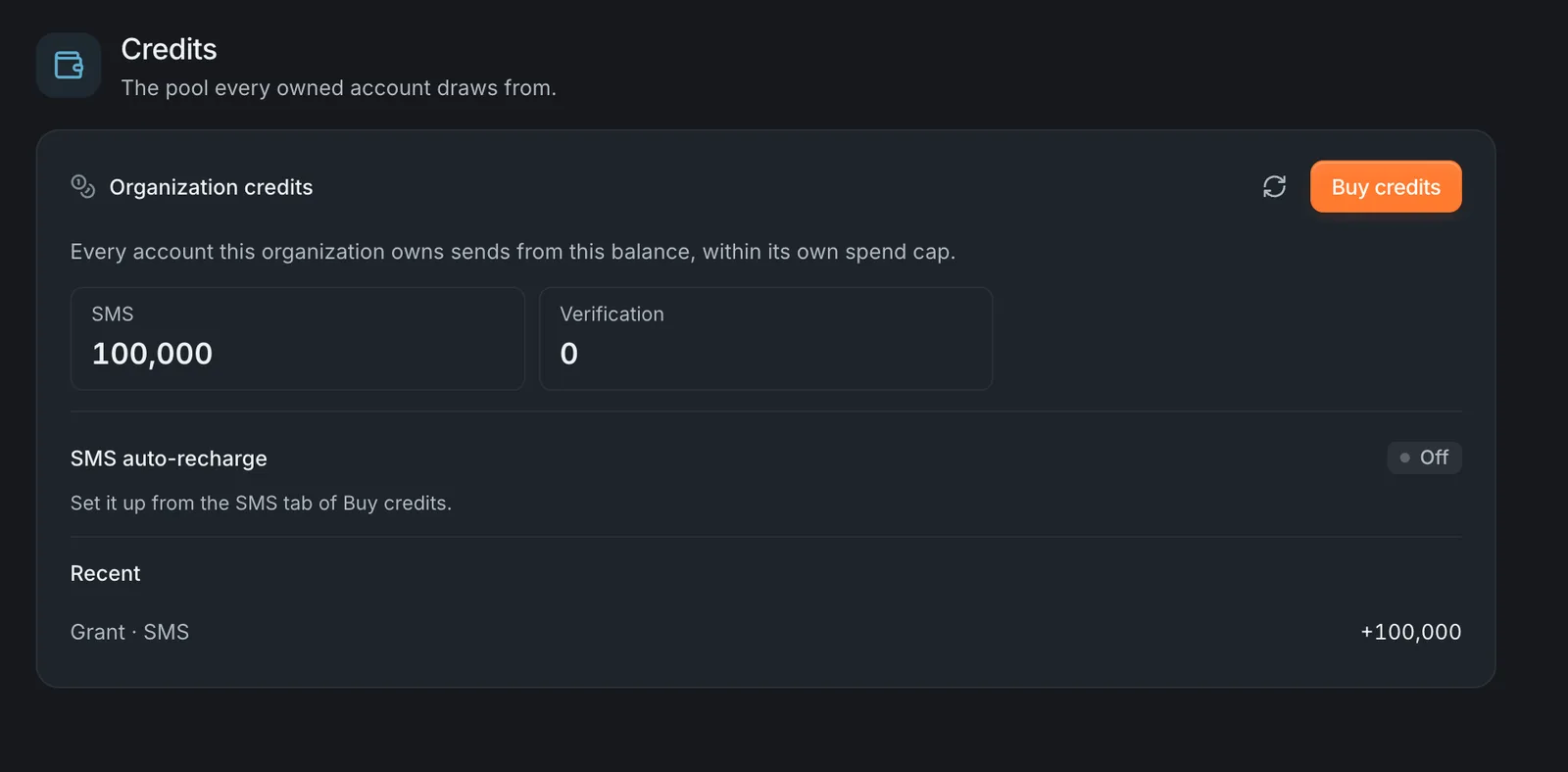

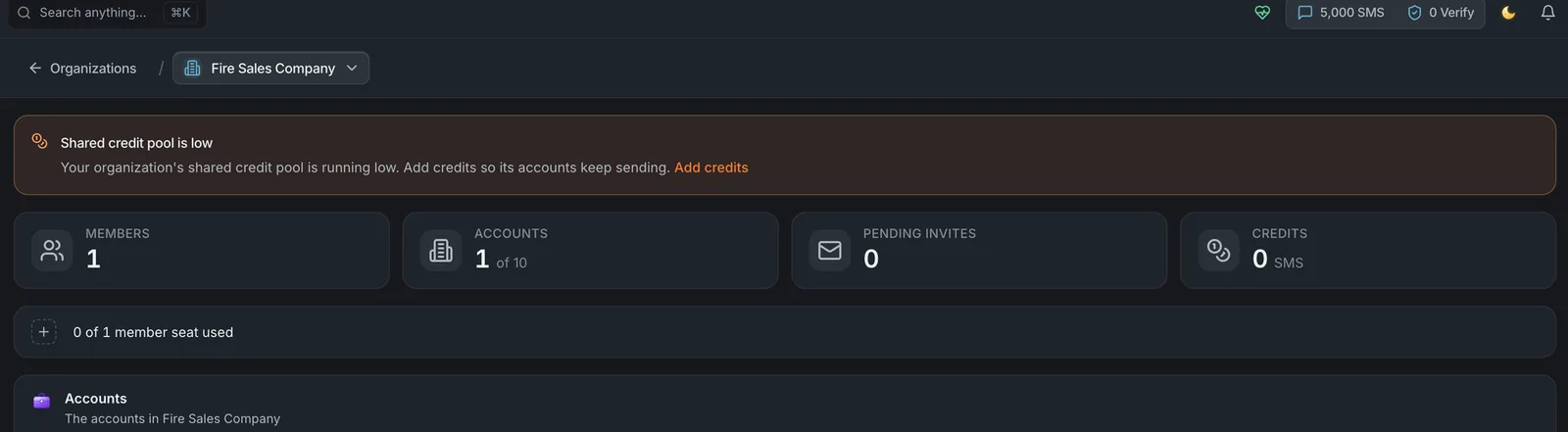
When the pool runs low, everyone sees a banner on the organization page and the Owner gets an Add credits link. When the pool is empty, every account pauses. Each one resumes on its own once SMS credits arrive.
Running several brands or client accounts and want them under one invoice? Start a free trial →
See every account at a glance
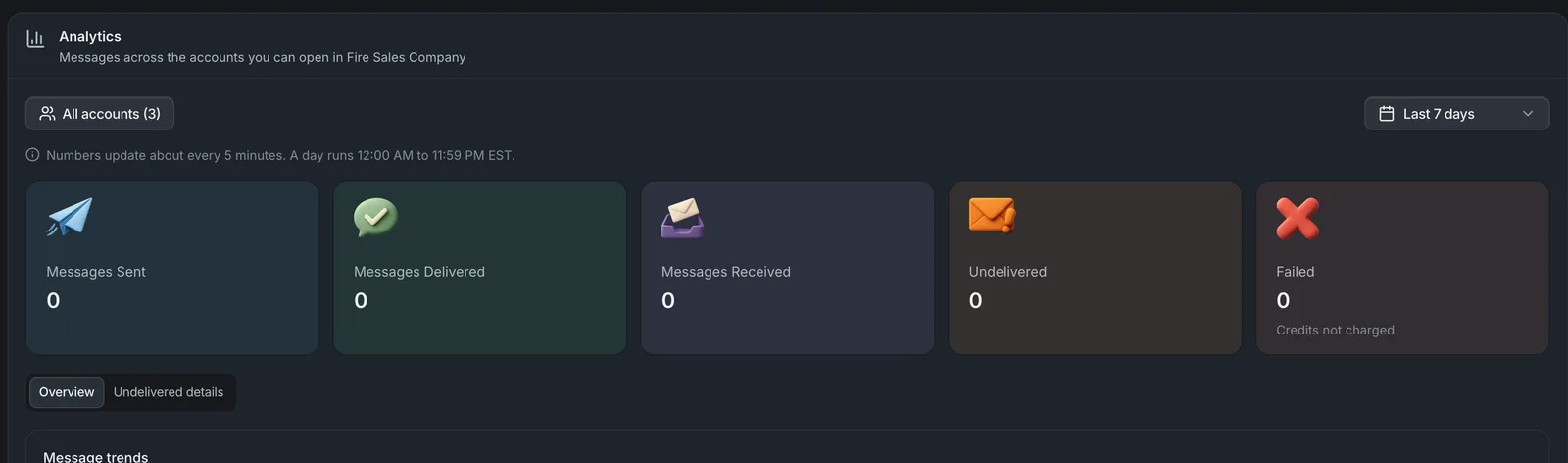
The Overview tab totals messages sent, delivered, received, undelivered and failed across every account you can open. Focus on one account with the account picker, or change the date range. Numbers update about every 5 minutes. For what each of those counts means and how to act on it, read our guide to the SMS analytics dashboard.
At a glance
| Limit | Value |
|---|---|
| Accounts per organization | 10 (contact support to raise) |
| Organizations per person | 3 (contact support to raise) |
| Invites per batch | 50 |
| Member seats per account | 1 |
| Spending policies per account | 1 |
| Policy periods | Hour, day, week, month, or one-off |
| Overview refresh | About every 5 minutes |
The Owner alone handles billing, credits, ownership transfer and deletion.
Frequently asked questions
Does every account in an organization share the same credits?
What happens when the shared pool runs out?
Can I bring an existing PitchPrfct account into an organization?
Who can invite people and set spending limits?
What can a spending policy limit?
How many accounts and organizations can I have?
Ready to run every account from one place? Start a free trial.
Questions? Write to support@pitchprfct.com or start a chat from inside the app.